ASUS RT-AX52
 Contains incomplete information!
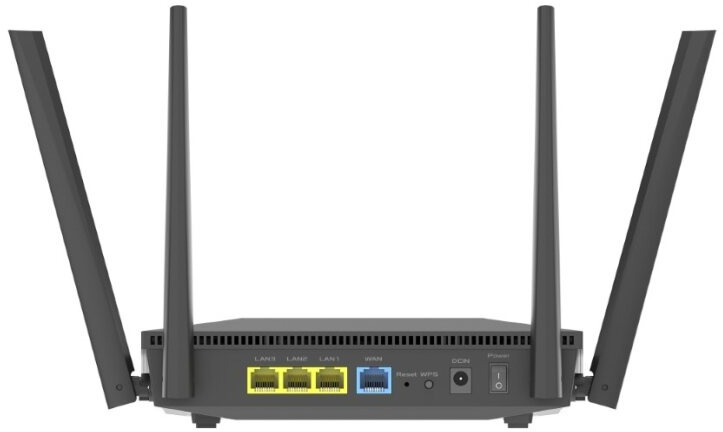
The RT-AX52 is a Dual Band WiFi 6 router based on the MediaTek Filogic SoC with a dual-core ARM Cortex-A53 @ 1.3 GHz, featuring three 1Gbit LAN ports and one 1Gbit WAN port.

Supported Versions
Hardware Highlights
Installation
Helpful installation links:
Vendor-UI Method
This section deals with:
- How you install OpenWrt from a device freshly opened
- The steps required such as reset to factory defaults if the device has already been configured
Note: Reset router to factory defaults if it has been previously configured.
- Download the
asus_rt-ax52-initramfs.trxfile from the OpenWrt download server.
- Connect the PC via LAN to one of the yellow router ports and wait until your PC to get a DHCP lease.
- Browse to
http://192.168.50.1orhttp://www.asusrouter.com/
- If your router is brand new, finish the setup process and log into the Web-UI.
- Navigate to Administration → Firmware Upgrade or use this link
http://www.asusrouter.com/Advanced_FirmwareUpgrade_Content.asp.
- Upload the .trx file to router
- Wait for it to reboot
- trx image is initramfs version. You must upgrade to squashfs version.
- Browse to
http://192.168.1.1/cgi-bin/luci/admin/system/flash
- Upload
asus_rt-ax52-squashfs-sysupgrade.binand usesysupgrade -n
- Wait for it to reboot
- SSH to 192.168.1.1 and set a root password, or browse to
http://192.168.1.1
TFTP Method
- Download the OpenWrt initramfs image (
asus_rt-ax52-initramfs-kernel.bin). Copy the image to a TFTP server reachable at 192.168.1.70/24. Rename the image tortax52.bin.
- Connect the PC with TFTP server to the RT-AX52. Set a static ip on the ethernet interface of your PC. (ip address: 192.168.1.70, subnet mask:255.255.255.0) Conect to the serial console, interrupt the autoboot process by pressing '4' when prompted.
- Download & Boot the OpenWrt initramfs image.
  $ setenv ipaddr 192.168.1.1
  $ setenv serverip 192.168.1.70
  $ tftpboot 0x46000000 rtax52.bin
  $ bootm 0x46000000
- Wait for OpenWrt to boot. Transfer the sysupgrade image to the device using scp and install using sysupgrade.
$ sysupgrade -n <path-to-sysupgrade.bin>
or browse to http://192.168.1.1/cgi-bin/luci/admin/system/flash , upload asus_rt-ax52-squashfs-sysupgrade.bin file to router.
- Wait for it to reboot
- SSH to 192.168.1.1 and set a root password, or browse to
http://192.168.1.1
Revert to stock firmware:
- Download the rt-ax52 firmware from ASUS official website. Save the firmware to tftp server directory and rename it to RT-AX52.trx
- Connect the PC with TFTP server to the RT-AX52. Set a static ip on the ethernet interface of your PC. (ip address: 192.168.1.70, subnet mask:255.255.255.0)
- Conect to the serial console, power on again, interrupt the autoboot process by pressing '4' when prompted.
  $: ubi remove linux
  $: ubi remove jffs2
  $: ubi remove rootfs
  $: ubi remove rootfs_data
  $: ubi create linux 0x45fe000
  $: reset
then the dut will reboot, interrupt the autoboot process by pressing '2' when prompted.
2: Load System code then write to Flash via TFTP.
Warning!! Erase Linux in Flash then burn new one. Are you sure?(Y/N)
$: enter y
you will see the follow, type enter directly:
  Input device IP (192.168.1.1) ==:
  Input server IP (192.168.1.70) ==:
  Input Linux Kernel filename (RT-AX52.trx) ==:
- wait for the device run up
Upgrading OpenWrt
Missing content!
Debricking
Missing content!
Failsafe mode
Missing content!
Basic configuration
Missing content!
→ Basic configuration After flashing, proceed with this.
Set up your Internet connection, configure wireless, configure USB port, etc.
Specific Configuration
Values might be incorrect!
Network interfaces
The default network configuration is:
| Interface Name | Description | Default configuration |
|---|---|---|
| br-lan | LAN & WiFi | 192.168.1.1/24 |
| wan | WAN port | DHCP |
Switch Ports (for VLANs)
Values might be incorrect!
| Port | Switch port |
|---|---|
| WAN (Blue) | wan |
| LAN 1 | lan1 |
| LAN 2 | lan2 |
| LAN 3 | lan3 |
Buttons
→ hardware.button on howto use and configure the hardware button(s). Here, we merely name the buttons, so we can use them in the above Howto.
Values might be incorrect!
cat /sys/kernel/debug/gpio

 gpiochip0: GPIOs 512-568, parent: platform/11d00000.pinctrl, pinctrl_moore:

 gpio-512 (                    |wps                 ) in  hi IRQ ACTIVE LOW
 gpio-513 (                    |reset               ) in  hi IRQ ACTIVE LOW
 gpio-520 (                    |blue:wan            ) out hi ACTIVE LOW
 gpio-524 (                    |blue:system         ) out hi
 gpio-546 (                    |white:wlan-2ghz     ) out lo ACTIVE LOW
 gpio-547 (                    |white:wlan-5ghz     ) out lo ACTIVE LOW
 gpio-551 (                    |reset               ) out hi
The ASUS RT-AX52 has the following buttons:
| BUTTON | EVENT |
|---|---|
| Power switch | Power on/off |
| Reset button | Pressed < 1 sec. = reboot, pressed > 5 sec. factory reset |
| WPS button | WPS < 3 sec. trigger WPS on hostapd, WPS > 3 sec. trigger WPS on wpa_supplicant only |
Configuration
Set WiFi country code
Before enabling each SSID set your Country Code to ensure the correct WiFi channels and transmit power are used:
- In LuCI go to Network → Wireless
- Click “Edit” on the SSID you want to enable
- Select your “Country Code” from the dropdown
- Save and Apply
Alternatively, set via SSH with iw reg set.
Hardware Acceleration
MediaTek supports hardware acceleration for their SoCs which increases throughput and greatly reduces load off the CPU. It does this by processing traffic on their Packet Processing Engine (aka Network Accelerator). The downside to this approach is it cannot be used in combination with QoS features such as SQM and AQL. This is not enabled by default in OpenWrt. To enable, read below.
Hardware Flow Offloading
HFO enables hardware offloading of routing/NAT packets. The caveat being it is incompatible with SQM. This can be enabled via /etc/config/firewall or in LuCI as follows:
- Network → Firewall → Flow offloading type → Hardware flow offloading
- Save and Apply
Wireless Ethernet Dispatch
Link points to GL.iNet GL-MT6000 topic due to lack of testing on ASUS RT-AX52! WED not tested on ASUS RT-AX52.
WED enables hardware offloading of wireless traffic. The caveat being it will also bypass AQL which may result in higher WiFi latency. This feature is not yet available in LuCI. To enable it, use the command line:
- SSH:
nano /etc/modules.conf - Append:
options mt7915e wed_enable=Y - Save and reboot
To check if WED is enabled, the following module will return either Y or N (yes or no): cat /sys/module/mt7915e/parameters/wed_enable
To check traffic offloaded to the PPEs for wired and wireless, cat ppe0/ppe1 bind/status, e.g.: cat /sys/kernel/debug/ppe0/bind.
Other Performance Features
Packet Steering may be enabled for single-core or multi-core. Note that with HFO enabled instead this will not matter as flows are offloaded. Irqbalance may be used as well, this will not affect bandwidth however may help with other tasks. While these can be enabled via SSH using LuCI is described below:
- Packet Steering: Network → Interfaces → Global Network Options → Packet Steering: Enabled (all CPUs), RPS: enabled with suggested setting.
- Irqbalance: install the
luci-app-irqbalancepackage and enable on: Services → irqbalance. - Save and Apply.
Adjusting AQL
Link points to GL.iNet GL-MT6000 topic due to lack of testing on ASUS RT-AX52! Changing AQL limits works.
This device uses the mt76 mac80211 wifi driver which supports AQL. While the default values are sensible, reducing TX queue limits can improve latency, albeit with a reduction in peak throughput. See forum post for adjusting AQL limits showing limits in the 1500-2500 range yield the lowest latency results. As always with WiFi, results will vary due to a variety of clients, frequencies, obstructions, etc. As noted above this cannot be used with WED enabled.
Check current AQL limits: cat /sys/kernel/debug/ieee80211/phy*/aql_txq_limit
Example for setting different limits on both radios:
for ac in 0 1 2 3; do echo $ac 2500 8500 > /sys/kernel/debug/ieee80211/phy0/aql_txq_limit; done
for ac in 0 1 2 3; do echo $ac 2500 8500 > /sys/kernel/debug/ieee80211/phy1/aql_txq_limit; done
To retain configuration after reboot save to /etc/rc.local:
# AQL Tweaks
aql_txq_limit_l=2500
aql_txq_limit_h=8500
for ac in 0 1 2 3; do echo $ac $aql_txq_limit_l $aql_txq_limit_h > /sys/kernel/debug/ieee80211/phy0/aql_txq_limit; done
for ac in 0 1 2 3; do echo $ac $aql_txq_limit_l $aql_txq_limit_h > /sys/kernel/debug/ieee80211/phy1/aql_txq_limit; done
Access Point mode
If configuring this device to function only as a wireless access point (dumb AP) follow the bridgedap guide and consider leaving hardware acceleration features off as explained below.
Flow Offloading
A dumb AP does not perform routing/NAT since it is on the same LAN as the router. Flow offloading (SFO and HFO) will therefore have no impact, better to leave these off.
WED
Since a dumb AP does not perform other functions there is plenty of CPU headroom, therefore WiFi will typically have lower latency by leaving WED disabled so it will utilize AQL. Nevertheless if you would like to use WED, enable it as described above, then install the bridger package which does some BPF (Berkeley Packet Filter) magic to track and offload bridged streams. Optionally, edit /etc/config/bridger and define a device or bridge to exclude from bridge forwarding acceleration.
Hardware
Info
Photos
PCB:
